INSTALLATION GUIDES
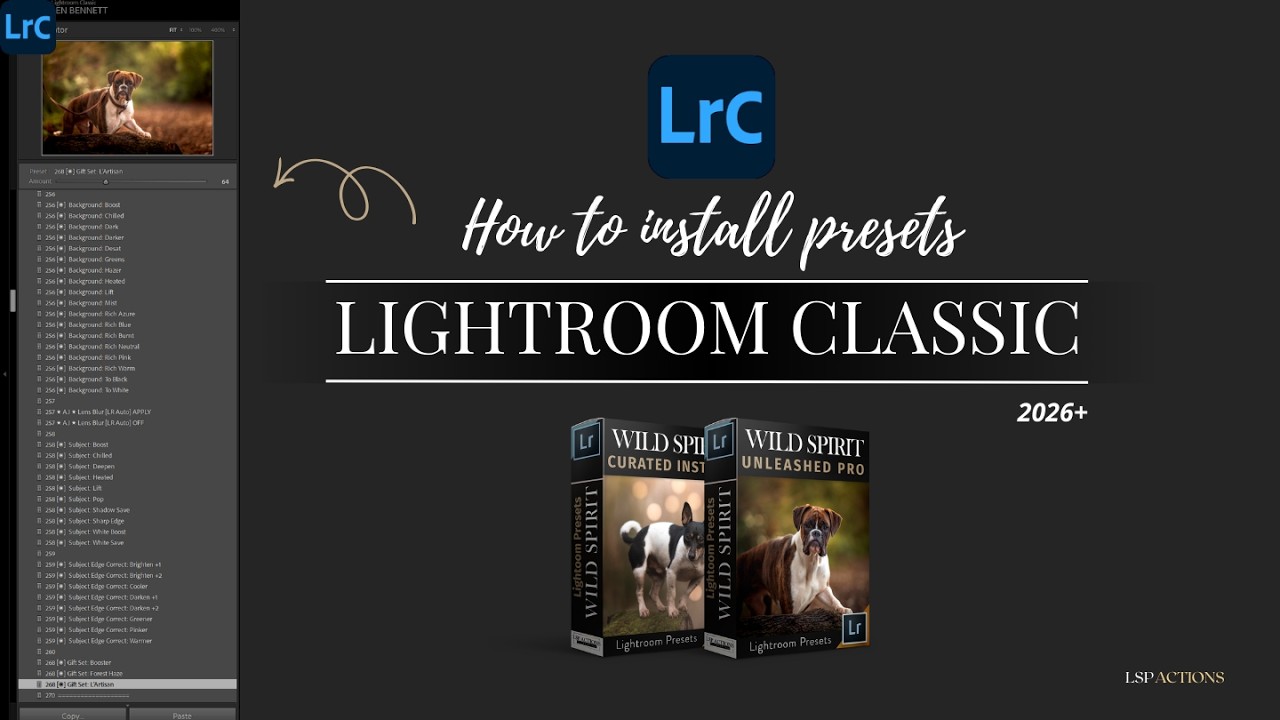
How to install presets in Lightroom Classic (LrC)

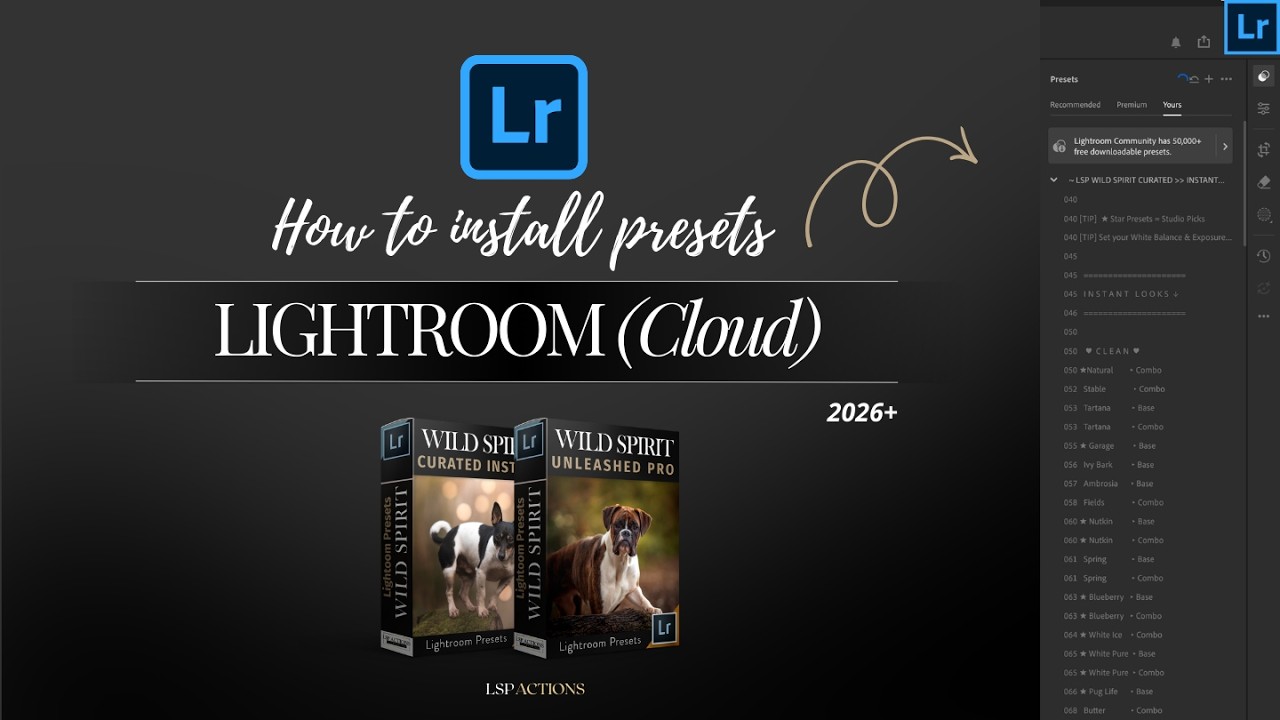
How to install presets in Lightroom Cloud (LR)

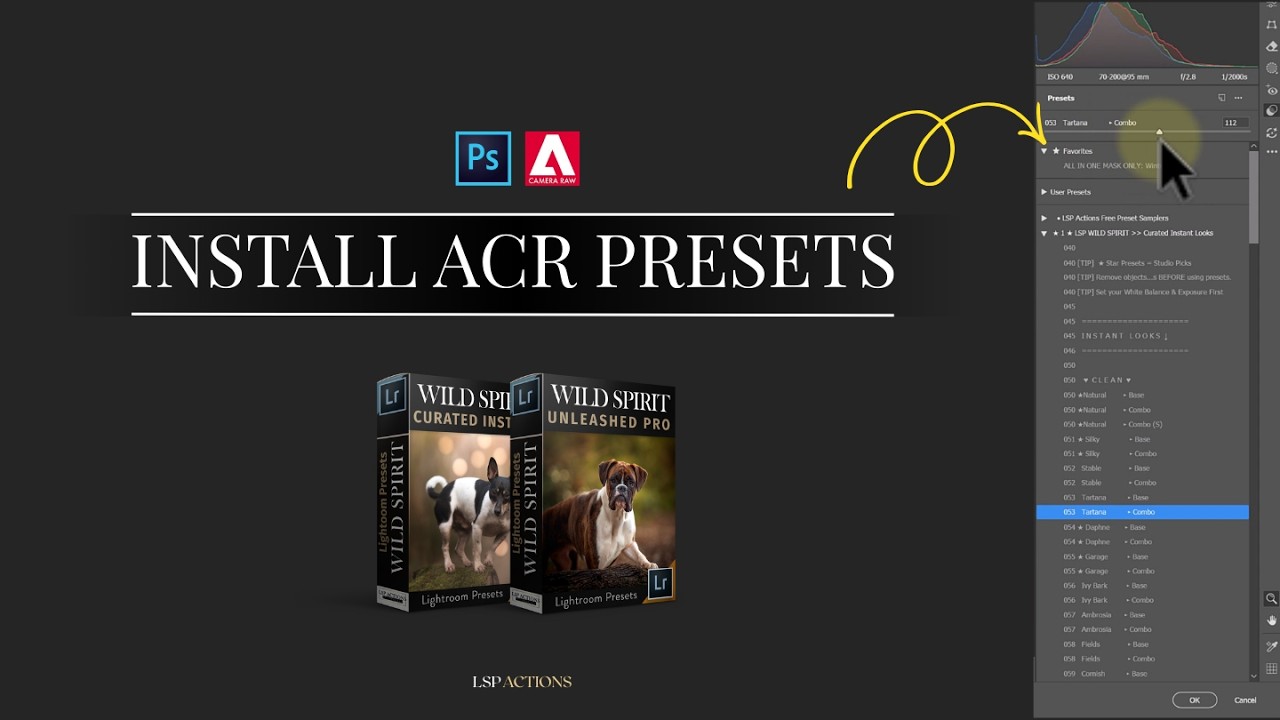
How to install presets in ACR Photoshop Creative Cloud

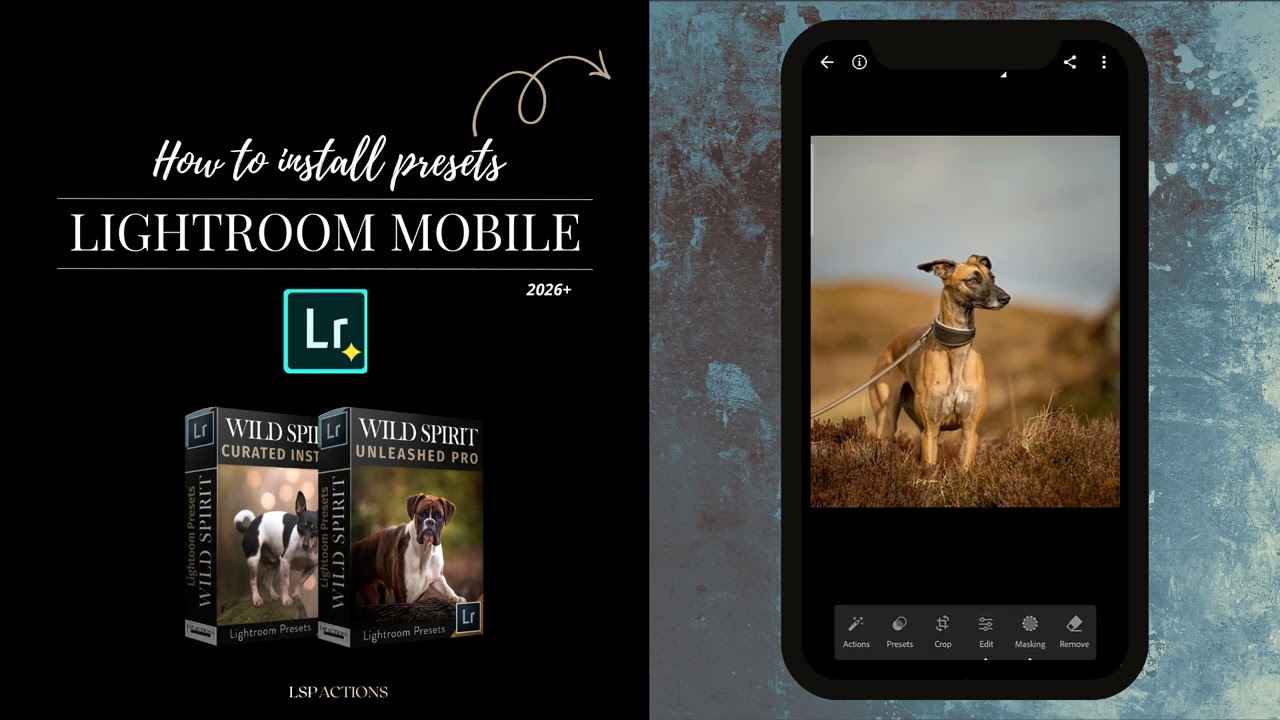
How to install presets in Lightroom Mobile

Ready to transform your editing workflow and create scroll-stopping images with your...
1. INSTALLATION GUIDES: Watch installation quick start guides for all versions of modern Lightroom and ACR
How to install presets in Lightroom Classic (LrC)

How to install presets in Lightroom Cloud (LR)

How to install presets in ACR Photoshop Creative Cloud

How to install presets in Lightroom Mobile

2. STEP BY STEP TUTORIALS: What's inside each preset collection, how to use, tips and deep dive advice

⏱️ CHAPTERS:
0:00 Wild Spirit Curated Instant Looks
0:36 Setting exposure & white balance first
1:15 Exploring the preset panel
1:47 The included magazine guide
3:06 Base vs Combo presets explained
4:17 Removing distractions before editing
6:04 Using the Amount slider to adjust strength
7:02 How to reset and start over
7:32 Winter, fog, snow & mist effects
8:21 Moody looks
9:16 Golden looks
9:40 Bokeh effects
10:30 How to tweak and edit masks
13:22 Fixing visible outlines around subjects
13:57 Add Brush & Subtract Brush on masks
15:02 Lightroom Auto Mask
15:47 Layering Unleashed Pro adjustments on top
16:41 Recap for all the looks we achieved
18:02 What's inside the PDF guide

⏱️ CHAPTERS:
0:00 Introduction & PDF magazine guide
1:29 Camera Fix (start here)
2:48 Starting the edit
3:12 White Balance presets
3:30 Tinter
3:51 Wild Bases
4:50 Tweaks
5:20 Sculpt
5:37 Texture
5:59 Colour Mix
6:25 Mask Infinity section
6:40 Light masks
7:48 Shade masks
8:03 Fades
8:16 Sky masks
8:29 Background masks
9:00 AI Lens Blur
9:28 Subject masking
10:38 Subject mask edge correction
11:17 Gift Set presets
11:30 Brush Zone section
12:50 Let's brush
13:00 Nothing happens when you click brush?
13:18 Choosing the Face Brush
13:33 How brush masks work
13:53 The masking panel
14:26 Finding the brush paint mask
14:35 Brush settings
15:23 Painting directly onto the image (eyes)
16:19 Painting sharpness
17:06 Make sure you click the mask when it's added (brush-on)
17:30 Show overlay to see your brush strokes
17:43 How to sync across your gallery
17:45 Do NOT sync brushes!
18:04 Sync processing time
18:53 Black & White section
18:54 How to make a Virtual Copy
19:17 Applying a black and white preset
19:46 Finishing the edit
20:14 Recap & best practice overview
21:00 Why you should use the Remove Tool First to avoid ghosting.
22:00 FINISH.
3. ONE IMAGE, DIFFERENT LOOKS: How you can completely change the look and vibe using the Curated Instant Presets
One dog, FIVE seasonal styles

One bird, TEN styles!

4. TROUBLESHOOTING: Solving problems with masks | RAW vs Jpeg | Solve "Ghosting" with the remove tool.
How to fix "Ghosting" in your images.
The resulting blotchy area is because at least one of your masks still encompasses the original element before you removed it.

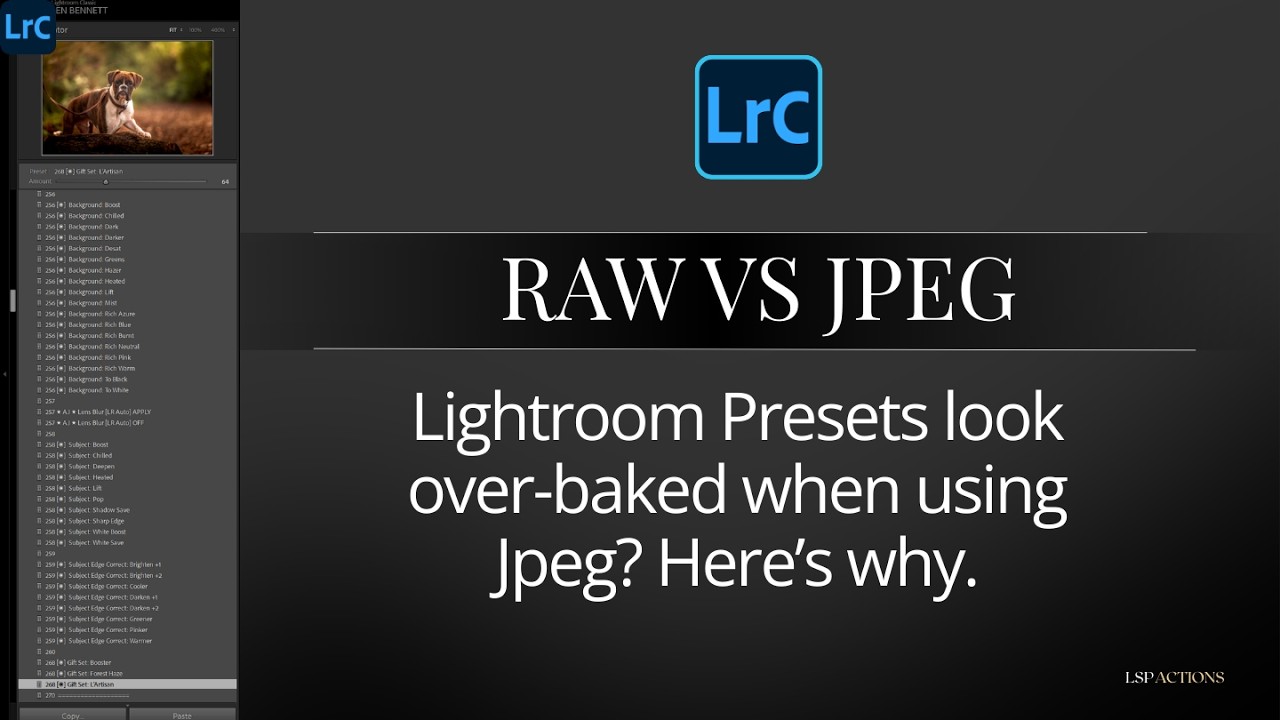
RAW vs JPEG - which is best? How to avoid the "over-baked" preset effect when using Jpeg editing.