
INSTALLATION GUIDES
How to install in Lightroom Classic (LrC)

How to install in Lightroom Cloud (LR)

How to install in ACR (Photoshop)

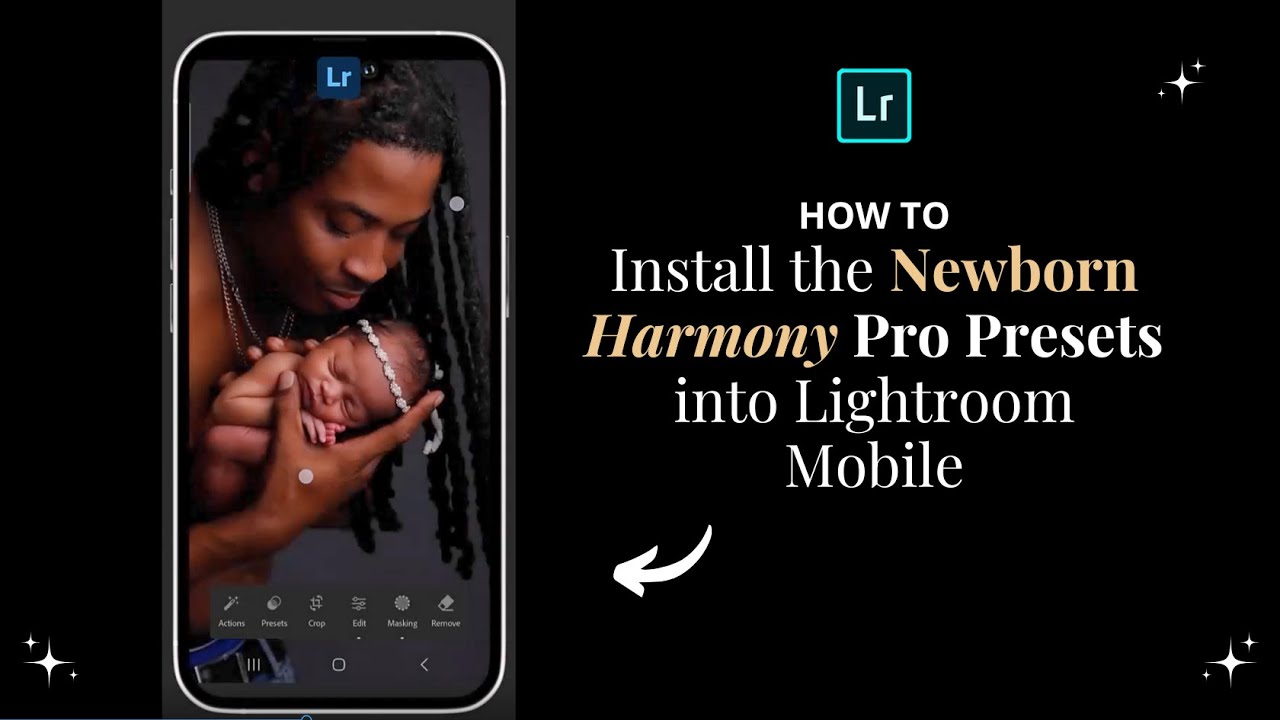
How to install in Lightroom Mobile
Ready to transform your editing workflow and create scroll-stopping images with your...
1. INSTALL: Watch installation quick start guides
How to install in Lightroom Classic (LrC)

How to install in Lightroom Cloud (LR)

How to install in ACR (Photoshop)

How to install in Lightroom Mobile
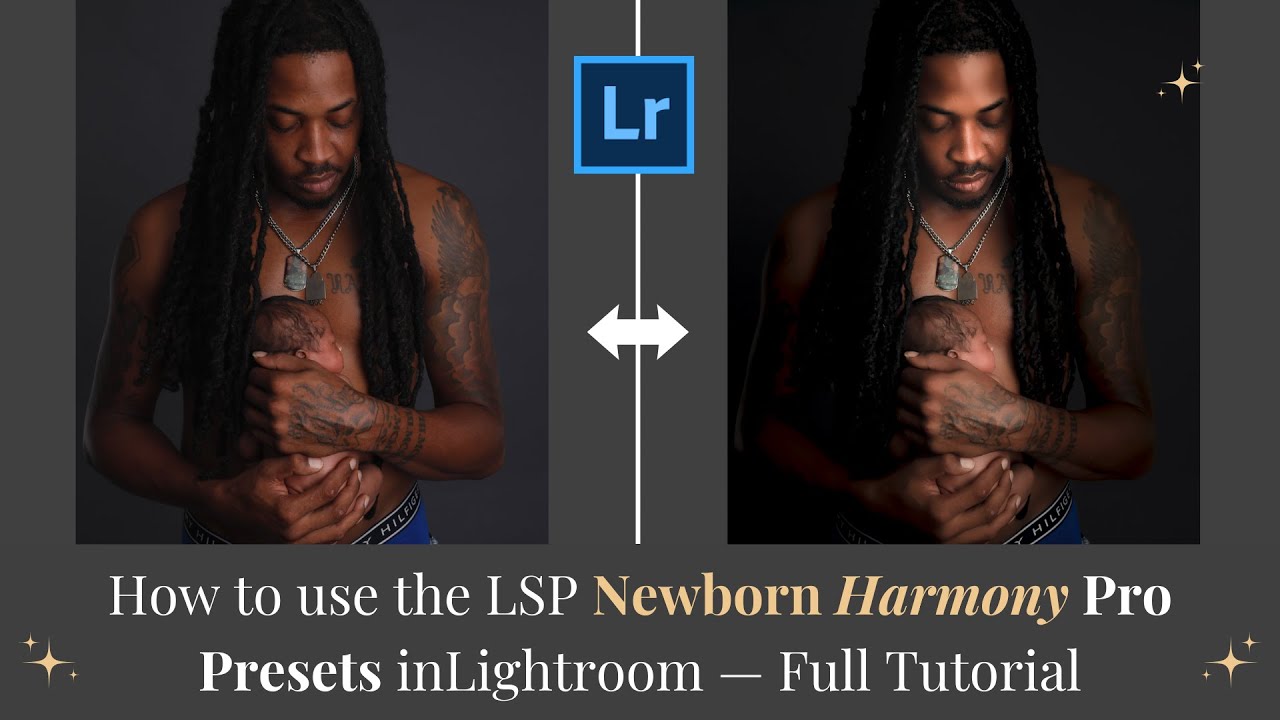
2. STEP BY STEP TUTORIAL: What's inside each section, how to use and tips.

00:00 — Overview
00:59 — Raw VS Jpeg
01:55 — How the presets work
02:10 — Darkroom
03:57 — Light FX
04:37 — Bases
06:15 — Instant Section: AI Masks, how to apply and edit.
08:01 — Face Retouch masks.
09:12 — Skin Retouching.
10:15 — How to edit a mask to change effect on individual people.
10:50 — Masking DAD only.
13:35 — Detail Presets
14:58 — Skin Color Correction
15:54 — Background presets
16:45 — Manual Brush Section
18:06 — Finishing Section
19:30 — Recap + adjustments.
20:20 — How to SYNC the editing to other images. Why you shouldn't sync manual brushing or brush-on presets (and what to do instead).
3. EXTRA TUTORIALS: Additional Specific edits, recipe guides and tips.
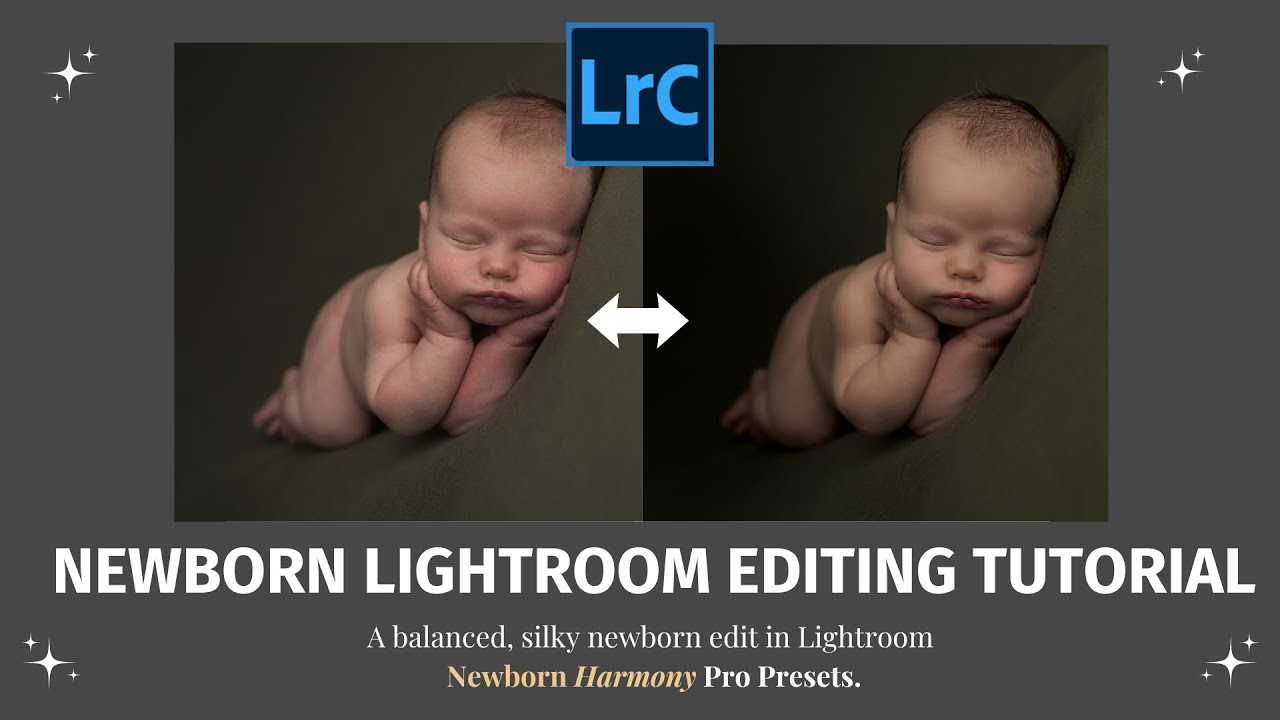
A silky soft art newborn edit in Lightroom

Light & airy edit, without washing out tones

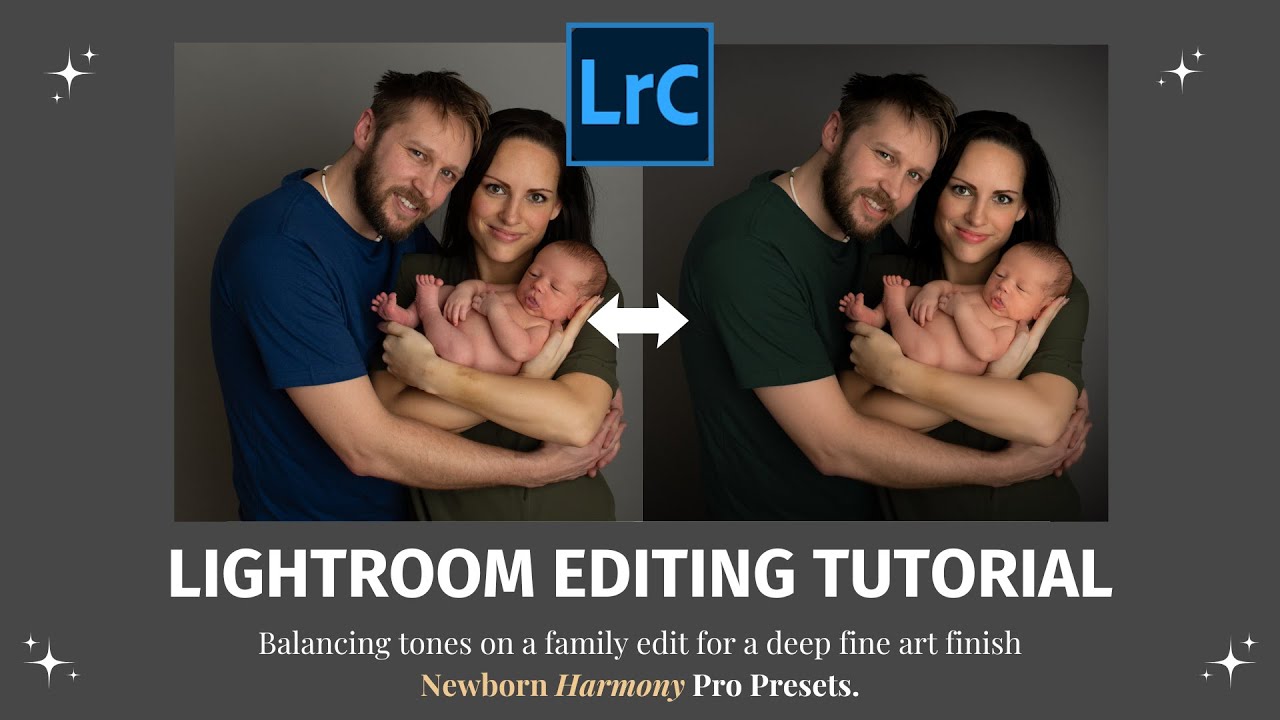
Family edit. Balancing skin tones for a deep professional finish. Manual editing for color change. How to tweak and remove people from masks:

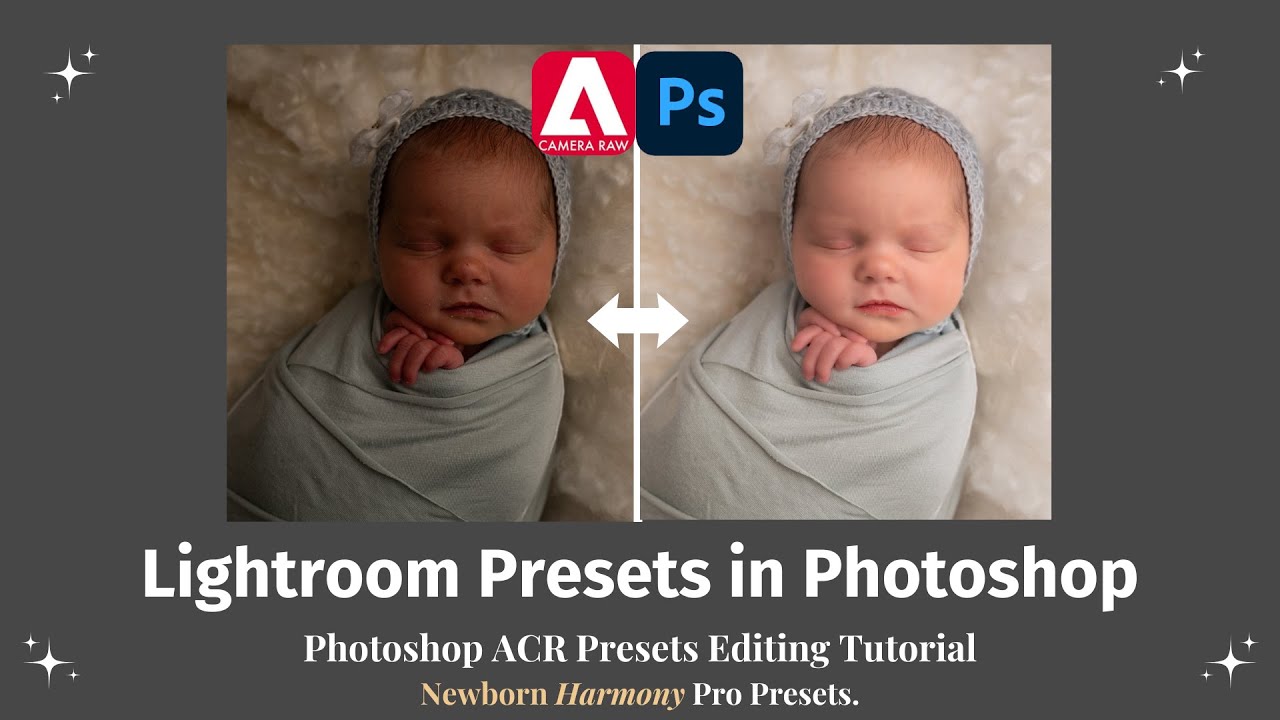
Editing in ACR with Photoshop tutorial. How to install and use our Lightroom presets in Camera Raw with a complete start-to-finish edit + tips.

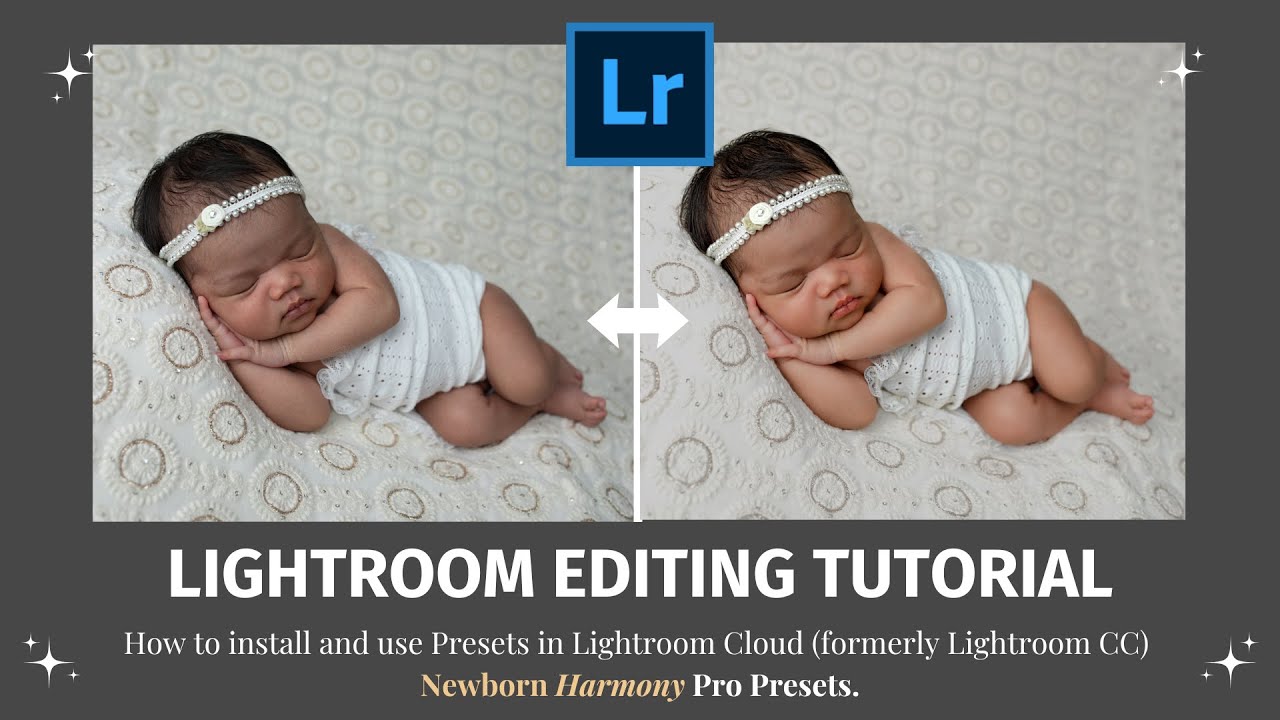
How to edit a RAW file in Lightroom Cloud (formerly Lightroom CC) with masking and quick tips.

4. TROUBLESHOOTING: Solving problems with masks | RAW vs Jpeg | Solve "Ghosting" with the remove tool.
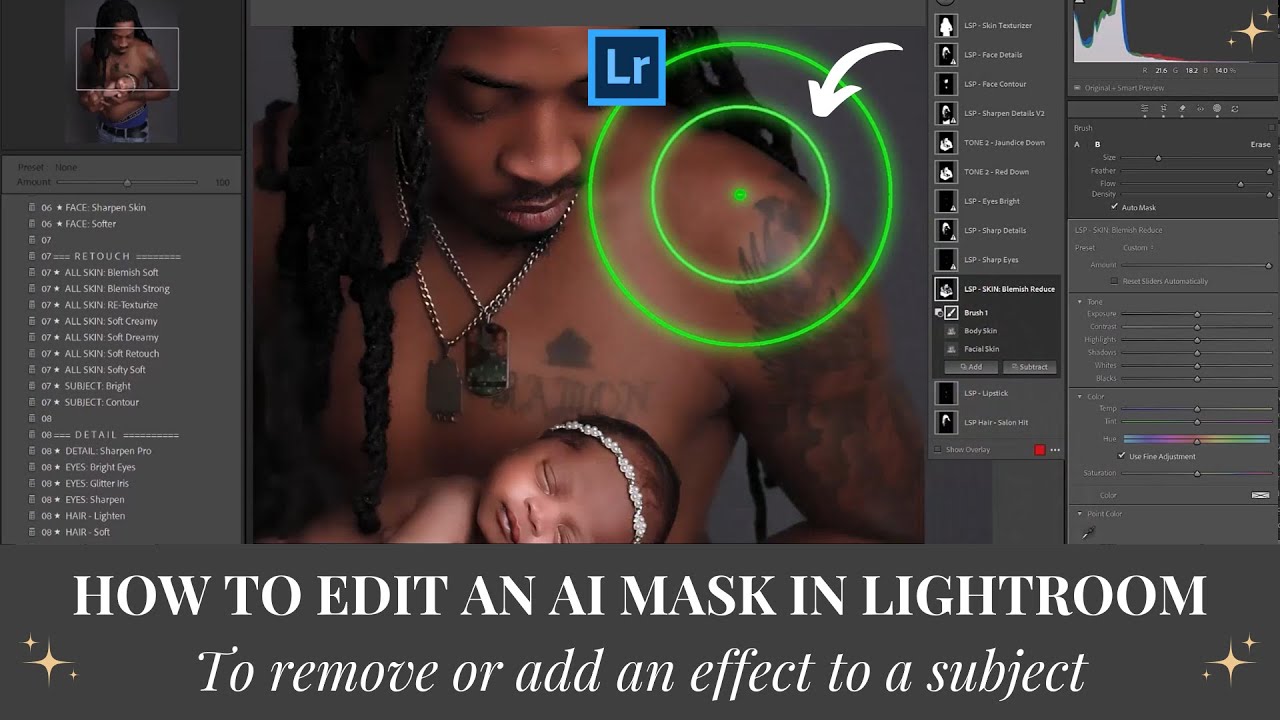
How to add to or remove from an AI mask to suit individual people or areas in your image.
Example shown: Soft skin. Works on baby, let's take the effect down on dad:

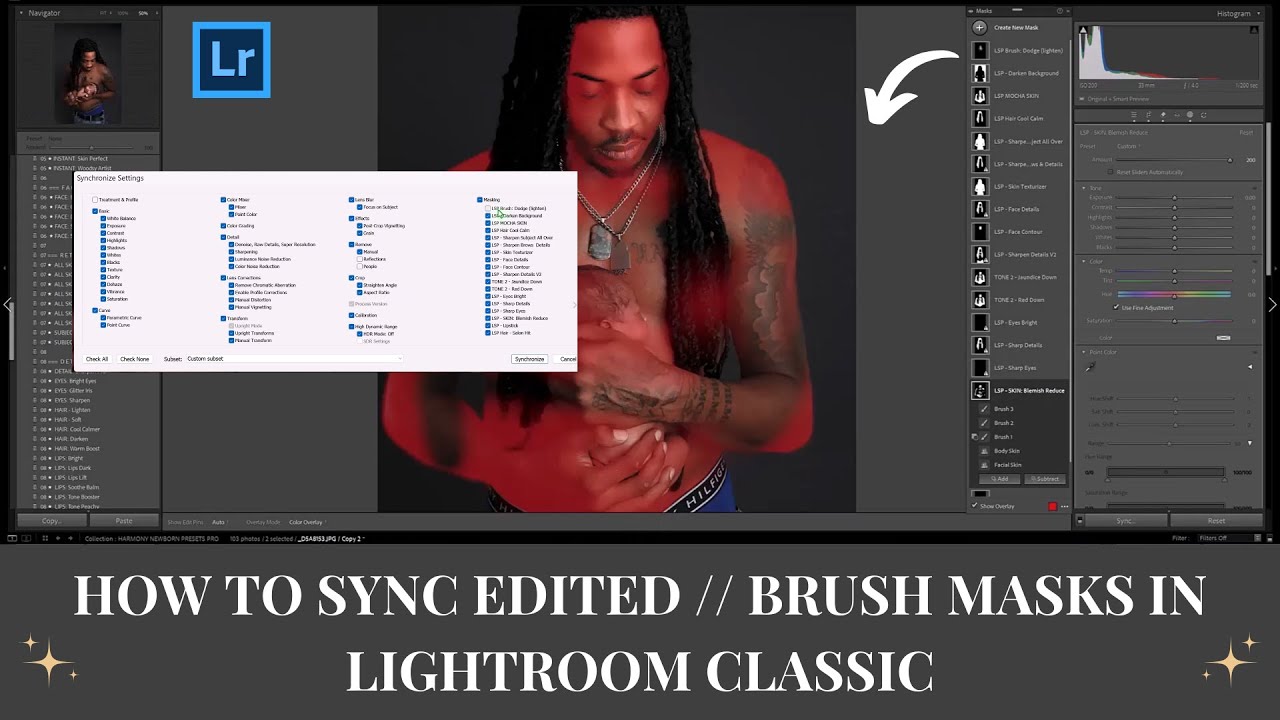
How to sync edits between images, and carry over manual brushing local adjustment edits.
If you find your brush-on layers aren't syncing well, this is why and how to fix it:

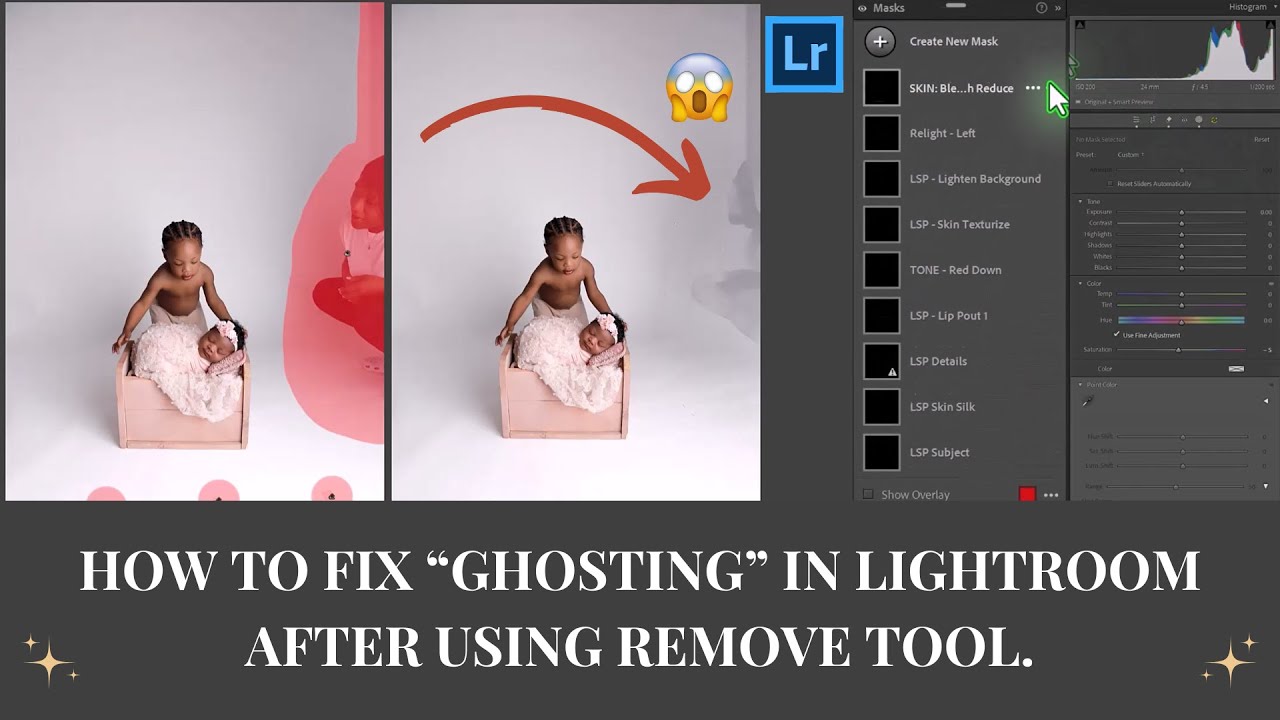
How to fix "Ghosting" in your images.
The resulting blotchy area is because at least one of your masks still encompasses the original element before you removed it.

5. Extra: How to use the presets in Lightroom Mobile Premium.

7. Extra: How to use the presets in ACR (Adobe Camera Raw with Photoshop)

Own the retired version "Newborn Lightroom Presets" and looking for tutorials? Click here.